
See the groups at a glance
Color-coded seating. A clearer picture.
Make a busy room easier to read. Name and color-code tables to distinguish sections, and use guest-party colors in the Apple apps to see which people belong together.
Table colors are documented on web and Apple apps. Guest-party display colors are documented in the Apple apps.
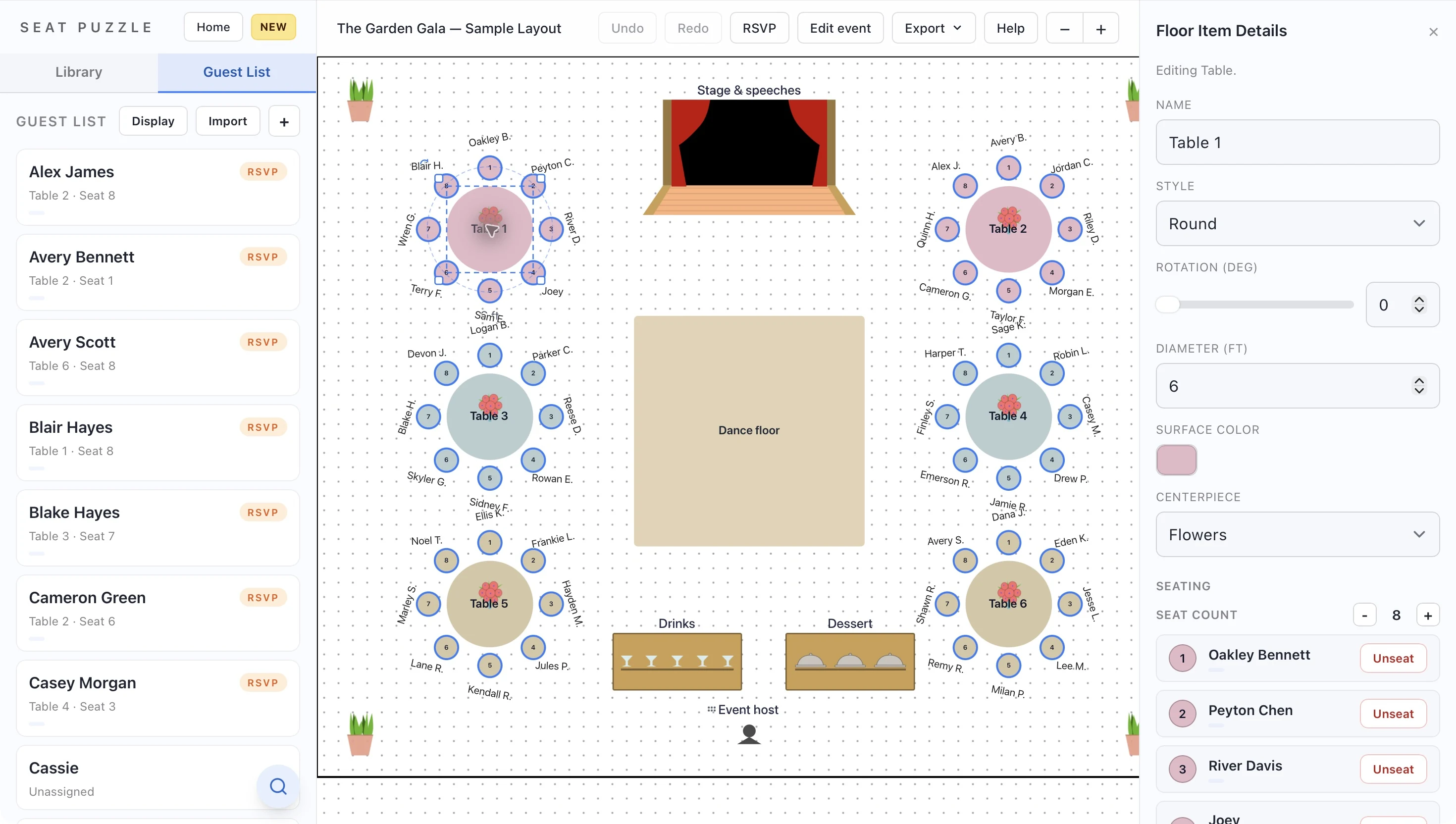
- Named and colored tables
- Guest-party colors in Apple apps
- Readable plans for your team
A little structure. A better event.
Choose colors with a purpose.
Use a small, consistent system that helps you and your collaborators understand the layout.
Decide what the colors mean
Use table colors for room sections, families, or teams. Pick a meaning that will stay useful as you move guests around.
Add names alongside colors
Name each table or area so the plan can be understood without relying on color alone. Keep labels short enough to read.
Review the guest groupings
In the Apple apps, show guest-party colors at the seats to review who is grouped together. Choose guest tags, party colors, both, or names only.
Make it work in your space
Color should explain the plan.
A consistent set of labels and colors makes the room easier to discuss, especially when the guest list changes.
Color the room’s sections
For a larger floor plan, table colors can identify a terrace, a main dining area, or different teams. Use the same naming pattern across the section so people can refer to a table in words as well as by its appearance.
Review who belongs together
In the Apple apps, guest-party colors can be shown at the table. That helps you review the people seated together even when the room contains many tables. Adjust the guest display to show tags, colors, both, or names depending on the task.
Keep the system simple
A plan with too many meanings for the same color becomes difficult to interpret. Decide the purpose of table colors before sharing the event. Keep names visible and explain the scheme to collaborators so a moved guest or changed table does not create confusion.
Good questions
Questions about color-coded seating.
Can I change table colors in the web app?
Yes. Select a table and use the detail panel to edit its name or label and change the table color or style.
Are table colors and party colors the same thing?
No. A table color identifies a table or visual section. Guest-party colors identify guests grouped into a party; their seat display options are documented in the Apple apps.
Can I display names without party colors?
Yes. The Apple apps offer guest display choices including tags, party colors, both, or names only.
Your space. Your people.