
Good ideas do not wait for Wi-Fi
Your seating chart, even when you’re offline.
Walk the room with your seating chart in hand. Seat Puzzle for iPhone and iPad lets you work on floor plans offline, so a venue’s connection does not have to decide when you can plan.
Offline planning applies to the native Apple apps. Online sharing and syncing need a connection.
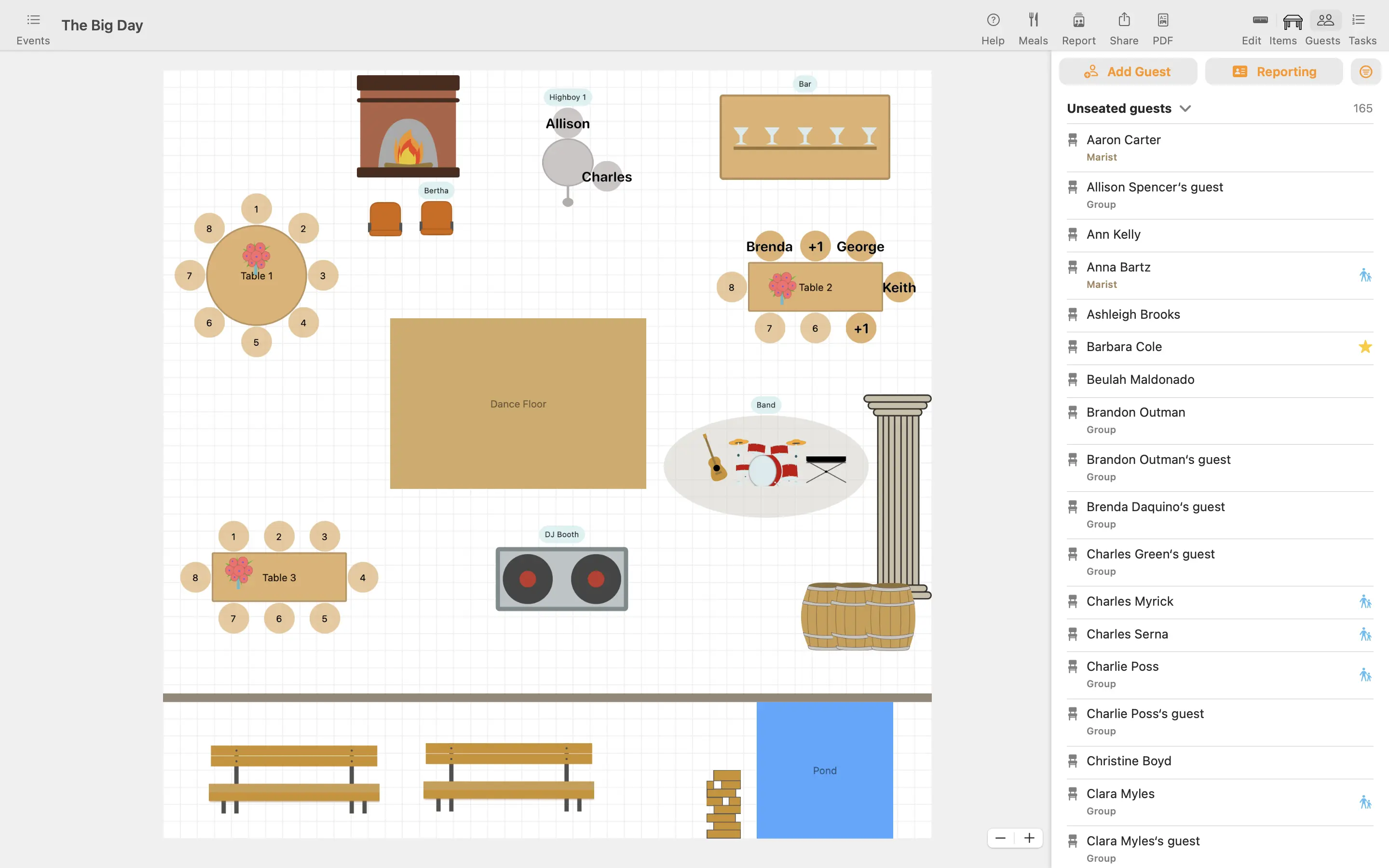
- Native iPhone and iPad apps
- Offline floor-plan work
- Your layout at the venue
A little structure. A better event.
Make the walkthrough part of the planning.
Bring the event with you, compare the plan to the room, and work through the details on site.
Prepare before you leave
Install the app and open the event while connected. Check that the plan and reference materials you need are available on your device.
Work in the space
Use your iPhone or iPad to review the layout and adjust furniture positions. Compare the drawing to the venue while you are there.
Reconnect to share
Once you have a connection again, allow syncing to complete and review the event before sharing the updated plan with other people.
Make it work in your space
The best place to review the room is in the room.
An offline-capable app lets the venue visit inform the plan while the details are still in front of you.
Prepare for the visit
Install Seat Puzzle, sign in as needed, and open the event while you have a connection. Check that the layout and any references you plan to use are on the device. That gives you a practical starting point before arriving at the venue.
Compare the diagram to the room
Walk through the entrance, main seating area, and service locations with the plan open. Note where a table position should change and adjust the arrangement while the real space is in front of you. Keep actual venue measurements as the basis for dimensions.
Bring the team up to date afterward
Offline changes are local work until the device can reconnect and sync. Once you are back online, review the updated event and share it with your collaborators. Use the event-sharing guide when preparing the plan for someone else to review.
Good questions
Questions about offline seating planning.
Can I work on a seating plan without Wi-Fi?
Yes. Offline planning is supported in the native Apple apps. Prepare and open your event on the device before your venue visit.
Does the web app work offline too?
This page describes offline planning in the native Apple apps. Use the web app with an internet connection.
Will other people see my offline edits immediately?
No. Online sharing and syncing require a connection. Reconnect and check that your changes have synced before asking collaborators to review the updated event.
Your space. Your people.