Resize, rotate, duplicate, and layer floor items
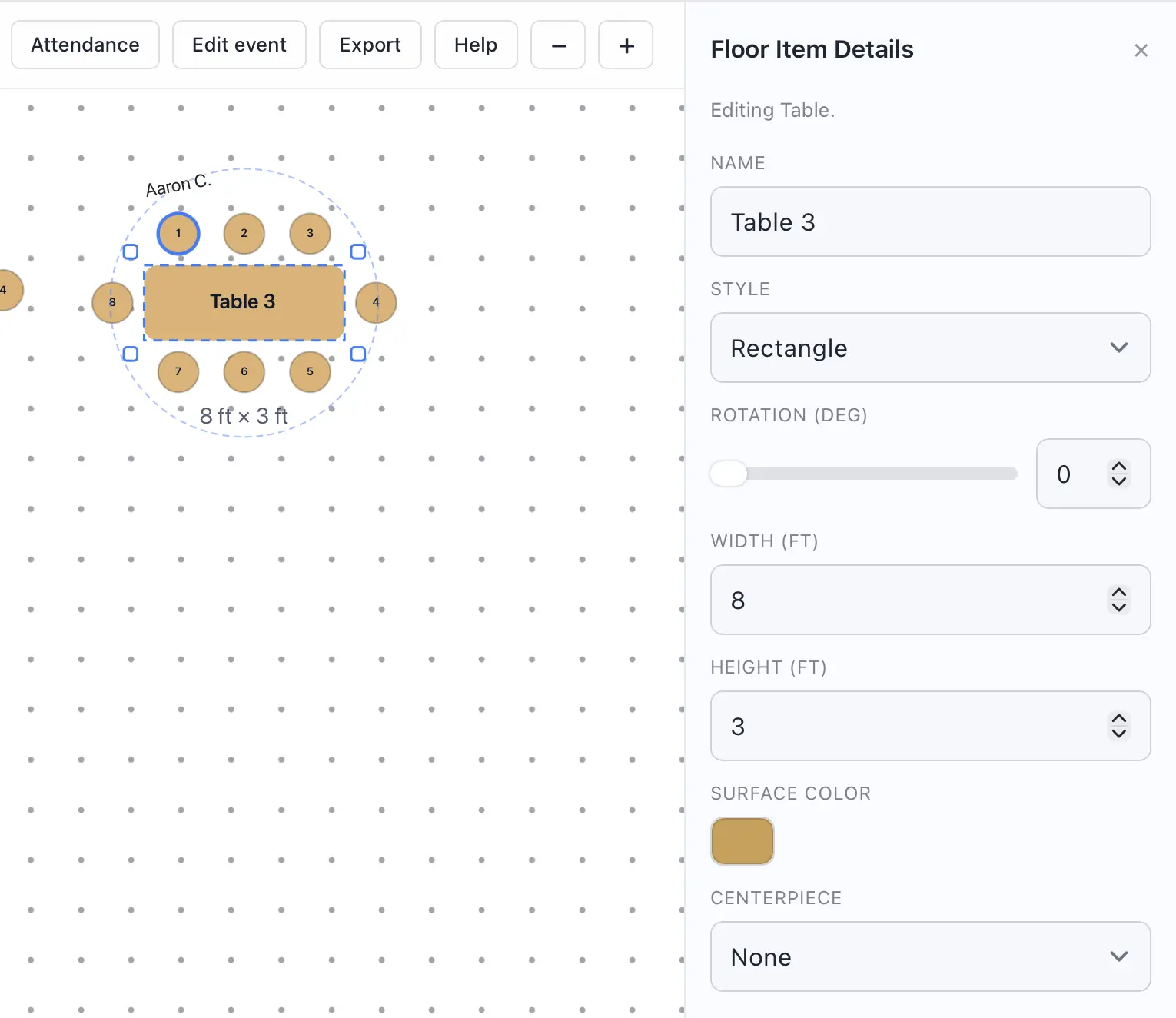
After you place an item, use the detail panel to adjust how it appears and how it fits the room.
- Select a floor item on the canvas.
- Use the detail panel to update its text, size, or style. Many items may be customized in color or other aspects.
- Rotate the item to the angle you need.
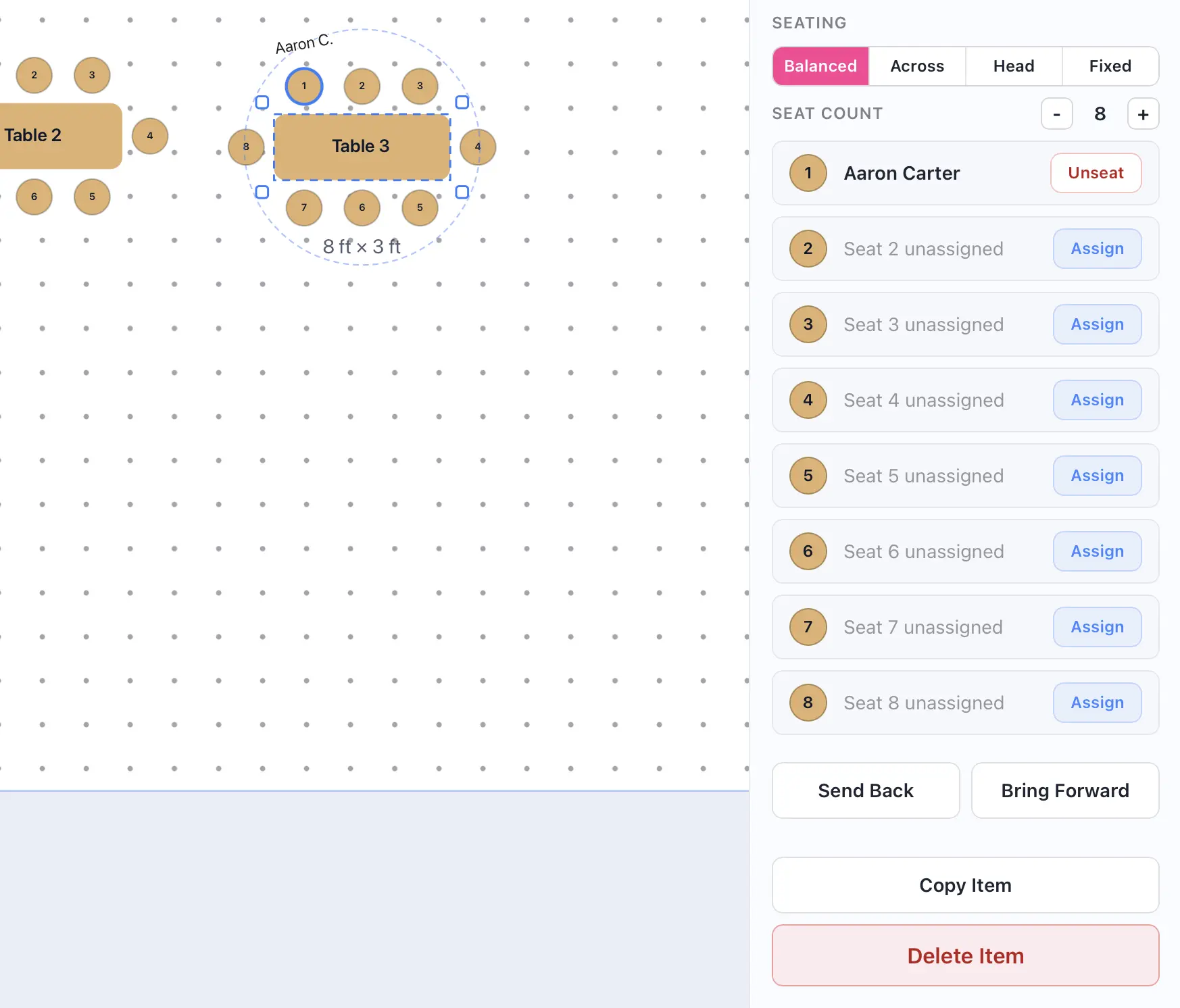
- Duplicate the item to create an exact copy of your item.
- Move the item forward or backward in the stacking order if objects overlap.
- Delete the item if you no longer need it.
Editing notes
- Sizing rules differ by item type, so some items allow width and height changes while others are fixed.
- Tables and other guest-based items provide seating controls, seat numbering options, and list the guests at the item. Use these settings when you want seat numbers to restart at each table instead of running consecutively across the event.
- Duplicated items keep their structural settings but do not carry guest assignments over.