
Keep the names. Add the picture.
From guest spreadsheet to seating chart.
Your guest list is already started. Bring it with you. Export a CSV from Excel or Google Sheets, import your guests into Seat Puzzle, and turn rows of names into a visual seating plan.
Plan online in your browser, or explore Seat Puzzle for iPhone, iPad, and Mac.
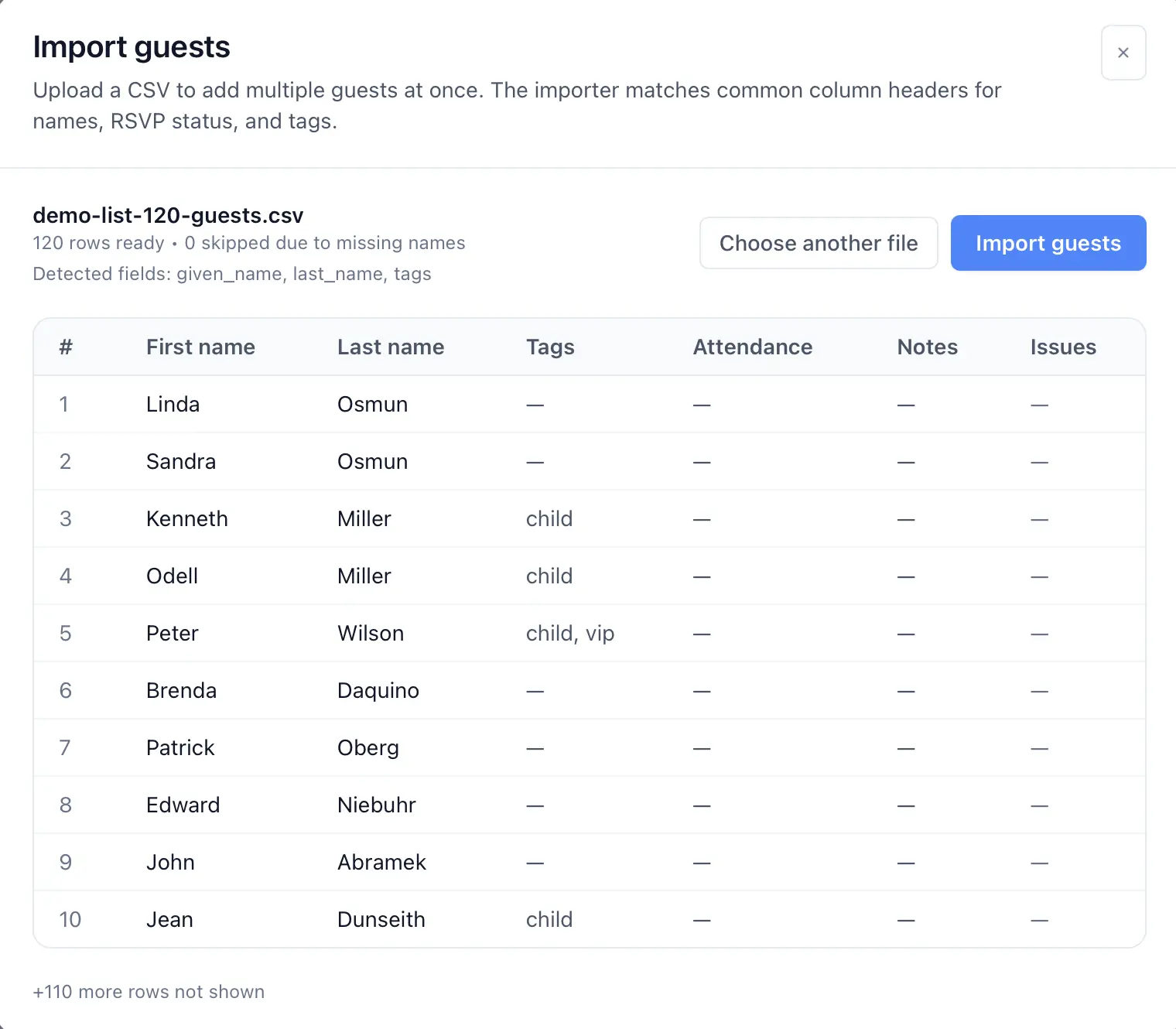
- CSV guest import
- Import preview and validation
- Guests connected to their seats
A little structure. A better event.
Three steps from spreadsheet to seating.
Use the spreadsheet as your starting point, then work with guests and tables together.
Export a CSV
Save or download your guest spreadsheet as a CSV. Use clear first-name and last-name headers, and check the file for missing names.
Review the import
Upload the CSV in the web app. Confirm the detected columns, review flagged or skipped rows, and check the created guest count.
Arrange the people
Review guest parties, add your tables, and assign seats. Refine the floor plan as you see how the guest list fits the room.
Make it work in your space
Let the spreadsheet do the starting. Let the plan do the arranging.
The useful part is the connection between the names you brought in and the places you give them.
Prepare names that are easy to recognize
Use a clear row for each guest and check for empty names before exporting the file. The web importer recognizes common first-name and last-name headers. Keep a copy of the original spreadsheet so you can resolve anything flagged in the preview.
Check the result before arranging the room
Review how many guests were created and whether any rows were skipped. Confirm attendance values and tags where they were recognized. Organize parties after import so the seating decisions reflect the households and groups in your actual invitation list.
Move from counting to placing
A spreadsheet tells you who is on the list. A floor plan helps you decide where they will sit. Create and name your tables, assign guests to seats, and review how the parties fit. Follow the CSV import guide for the detailed web workflow.
Good questions
Questions about spreadsheet to seating chart.
Can I upload an Excel workbook directly?
The documented guest-import workflow uses CSV files. Export your Excel workbook’s guest sheet as a CSV before importing it into Seat Puzzle.
Does it stay synced with Google Sheets?
CSV import brings in the file you upload. It is not a live connection to Google Sheets or Excel. Review changes in your event rather than assuming spreadsheet edits will sync automatically.
Which columns does the web importer recognize?
Common first-name and last-name headers are detected automatically. The importer can also recognize notes, attendance values, and tags. Review the import preview to confirm what will be used.
Your space. Your people.