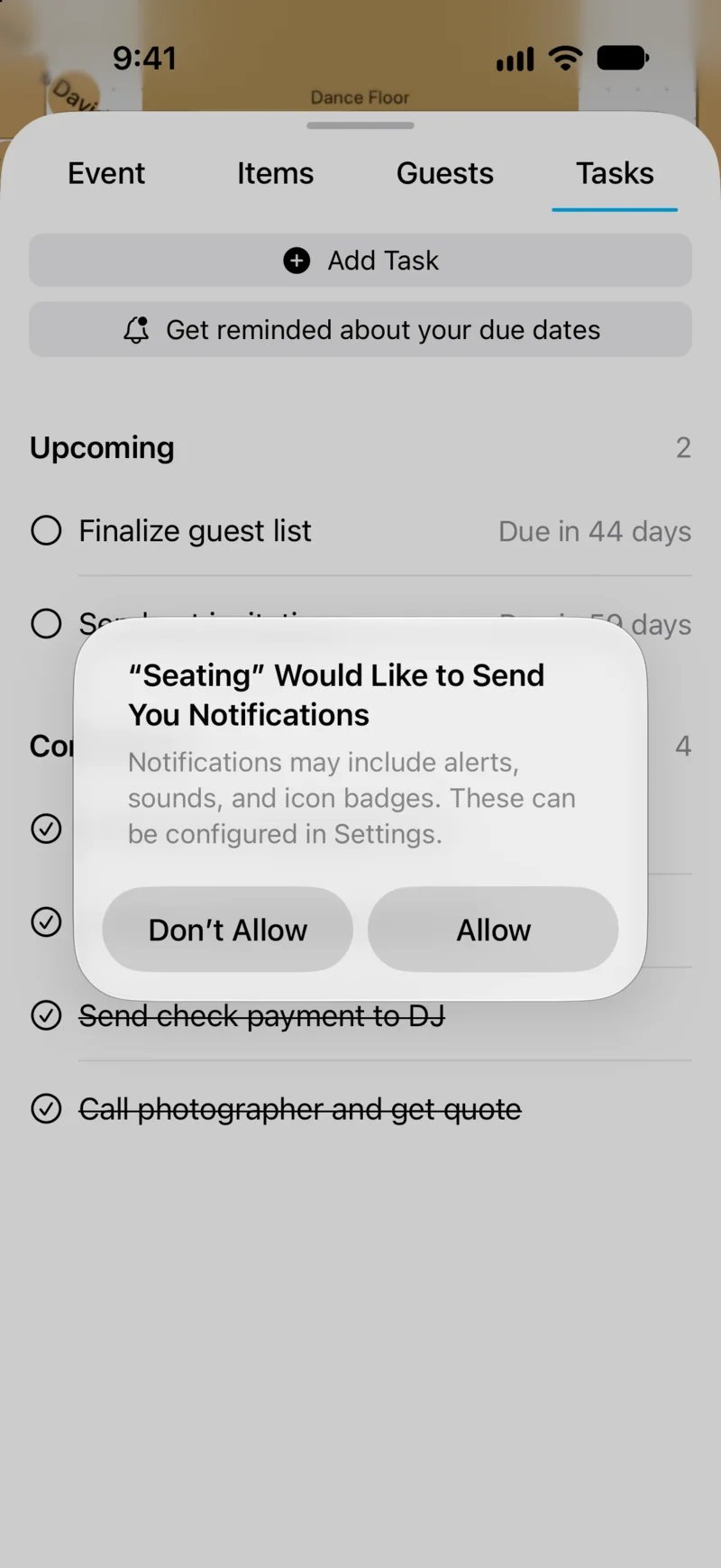
How to set a checklist due date and get a reminder
Set a due date
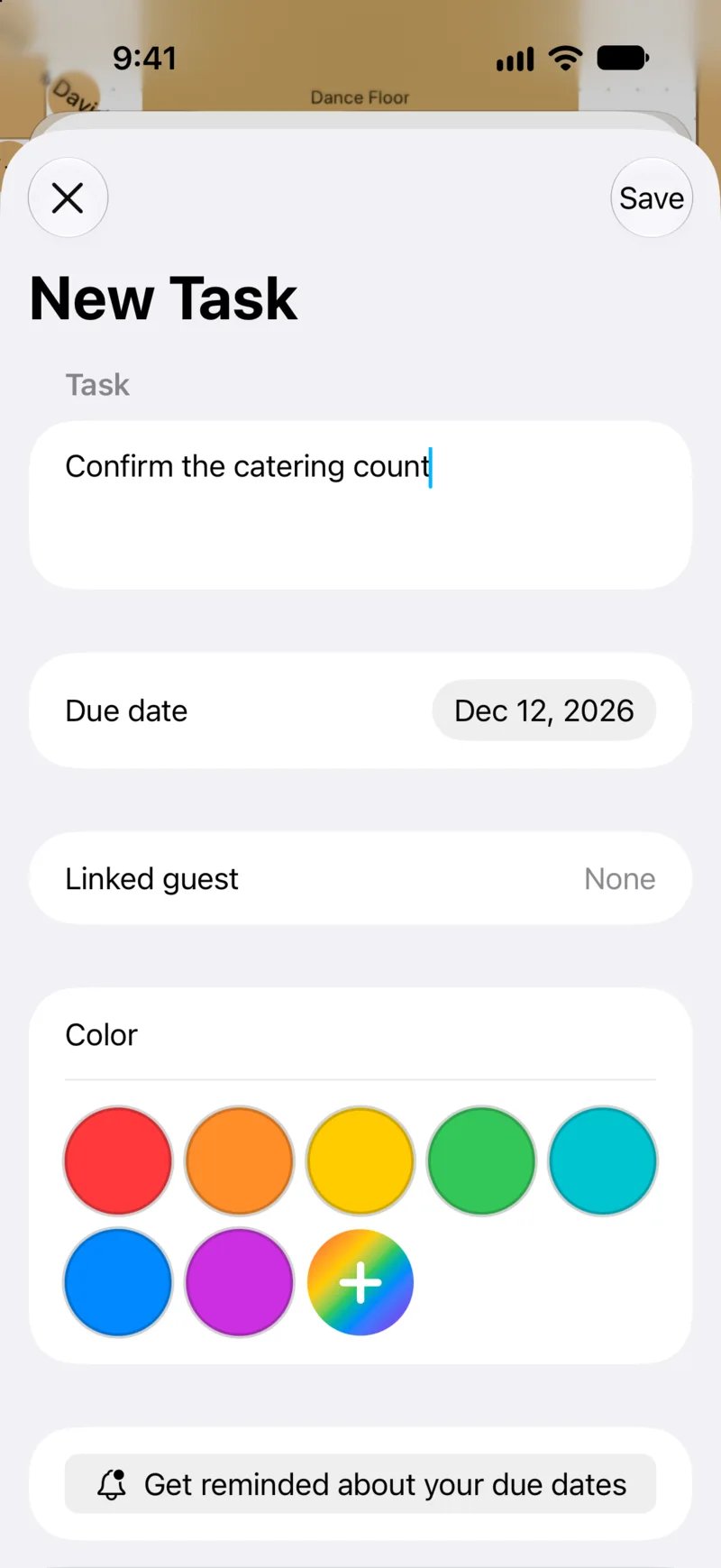
- Open your event, tap Tasks, then tap Add Task. To edit an existing task, tap its name.
- Enter the task details. Tap Add due date, then tap the date to change it.
- Tap Save.
Turn on reminders
In Tasks, tap Get reminded about your due dates. Tap Allow when your iPhone asks for notification permission.
If notifications are off, open the iPhone’s Settings → Notifications, find Seat Puzzle, and turn on Allow Notifications.
Tap the circle next to a task to mark it complete. Tap its checked circle under Completed to reopen it. Reminders apply to unfinished tasks with a due date.