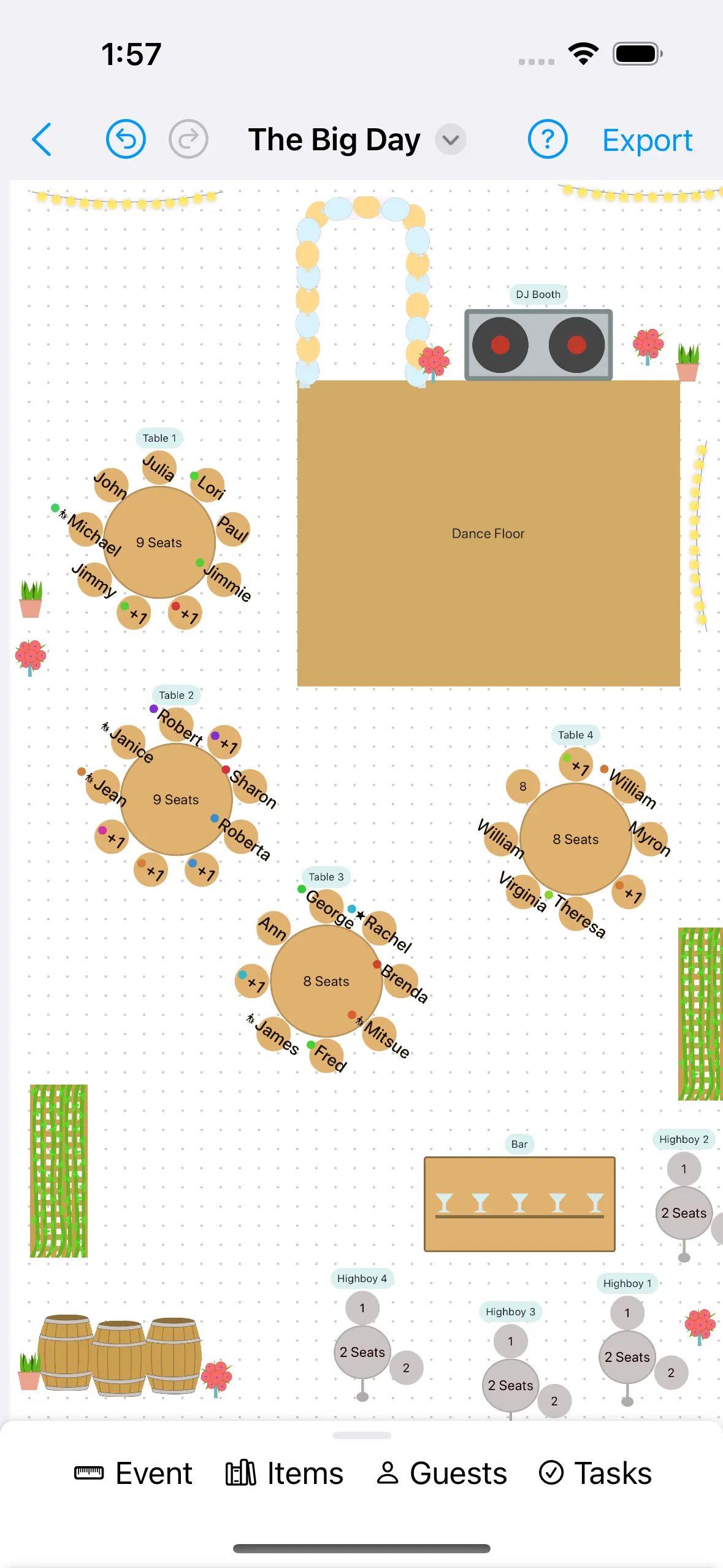
How to create an event or change its details
Create an event
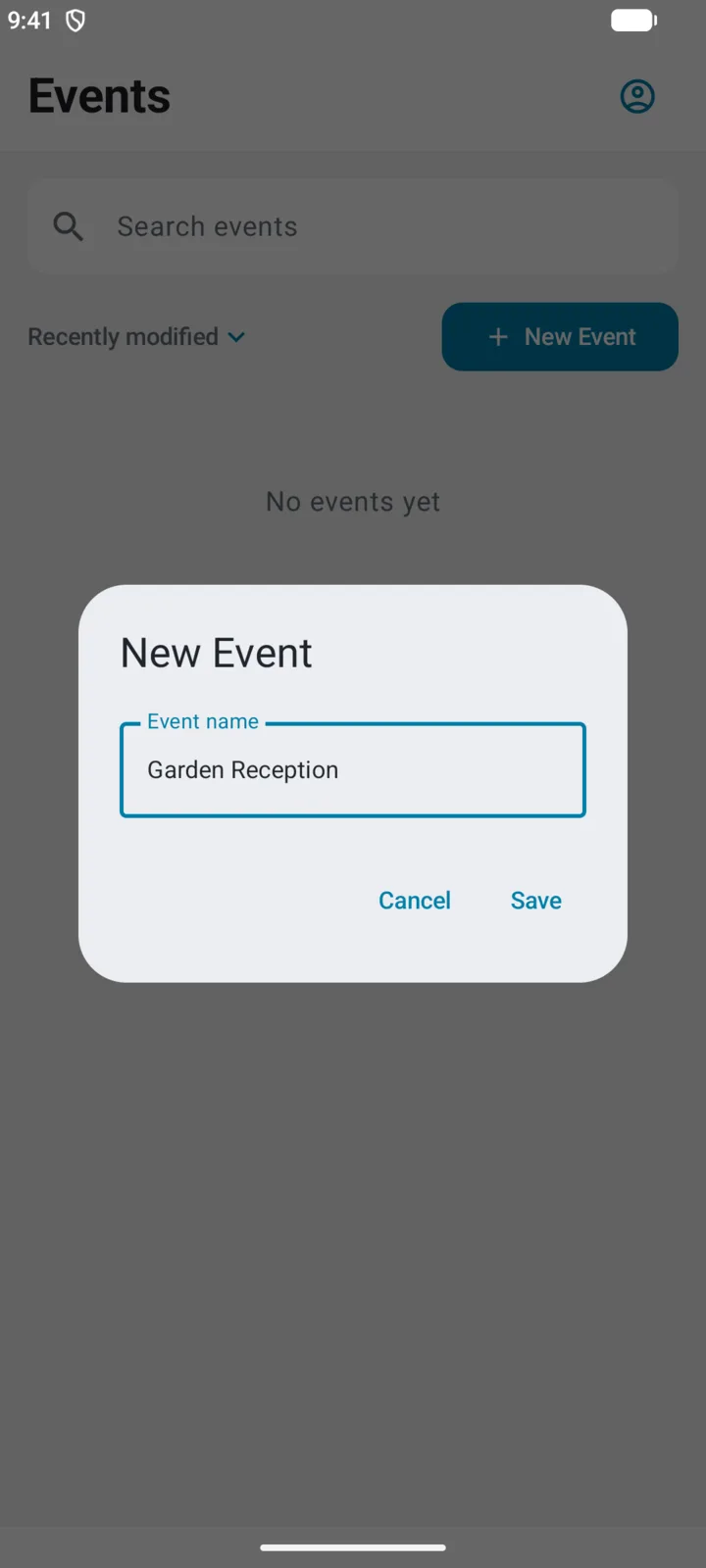
- On the Events screen, tap New Event.
- Enter an Event name and tap Save to open the new floor plan.
Change the name or date
- Open the event and tap Event at the bottom of the planner.
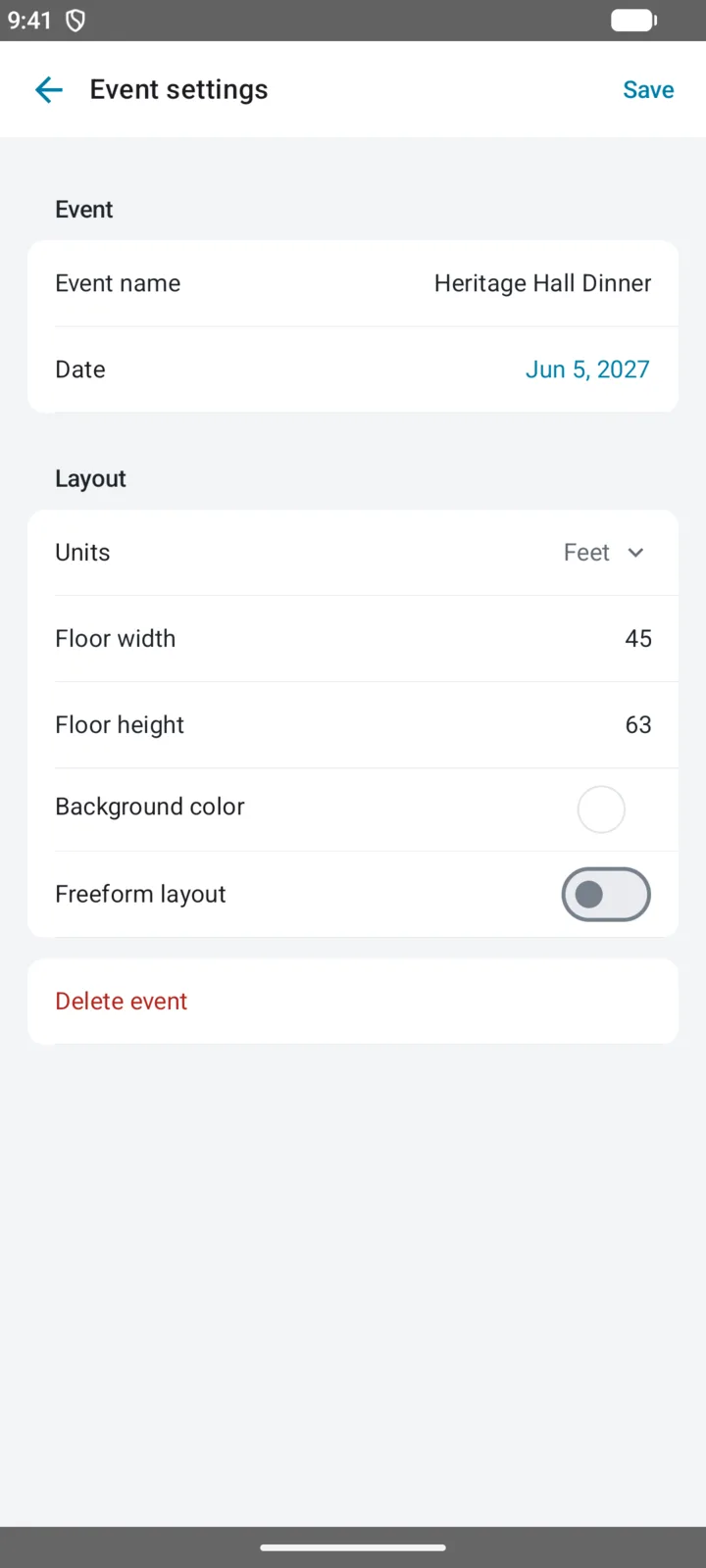
- Tap Event details.
- Change the Event name or tap Date. Choose a date and tap Done, or tap Clear to remove it.
- Tap Save.
Delete an event
Open Event → Event details, scroll down, and tap Delete event. Tap Delete to confirm. This removes the event and its guests from all your devices.