How to assign, move, or unseat a guest
Drag a guest to a seat
- Tap Guests on the planner.
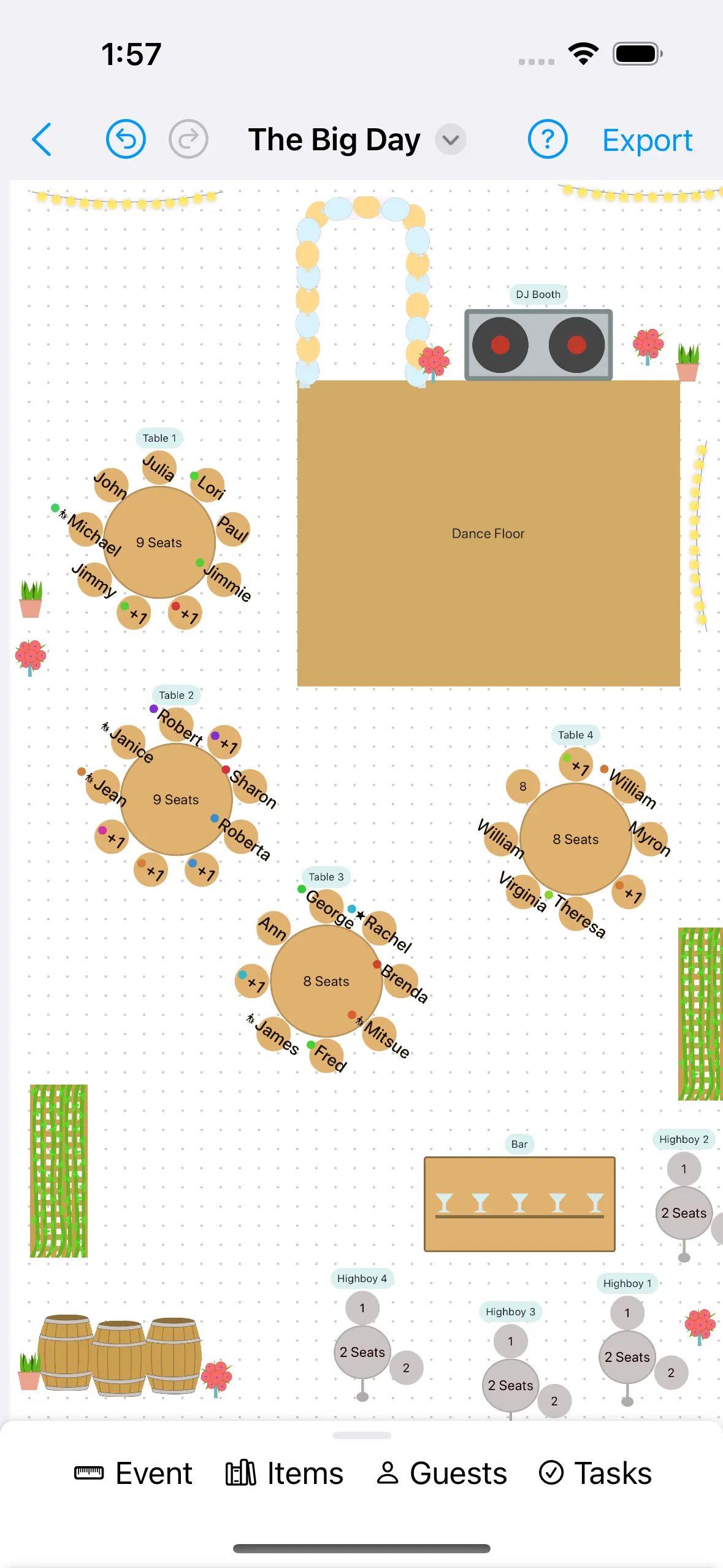
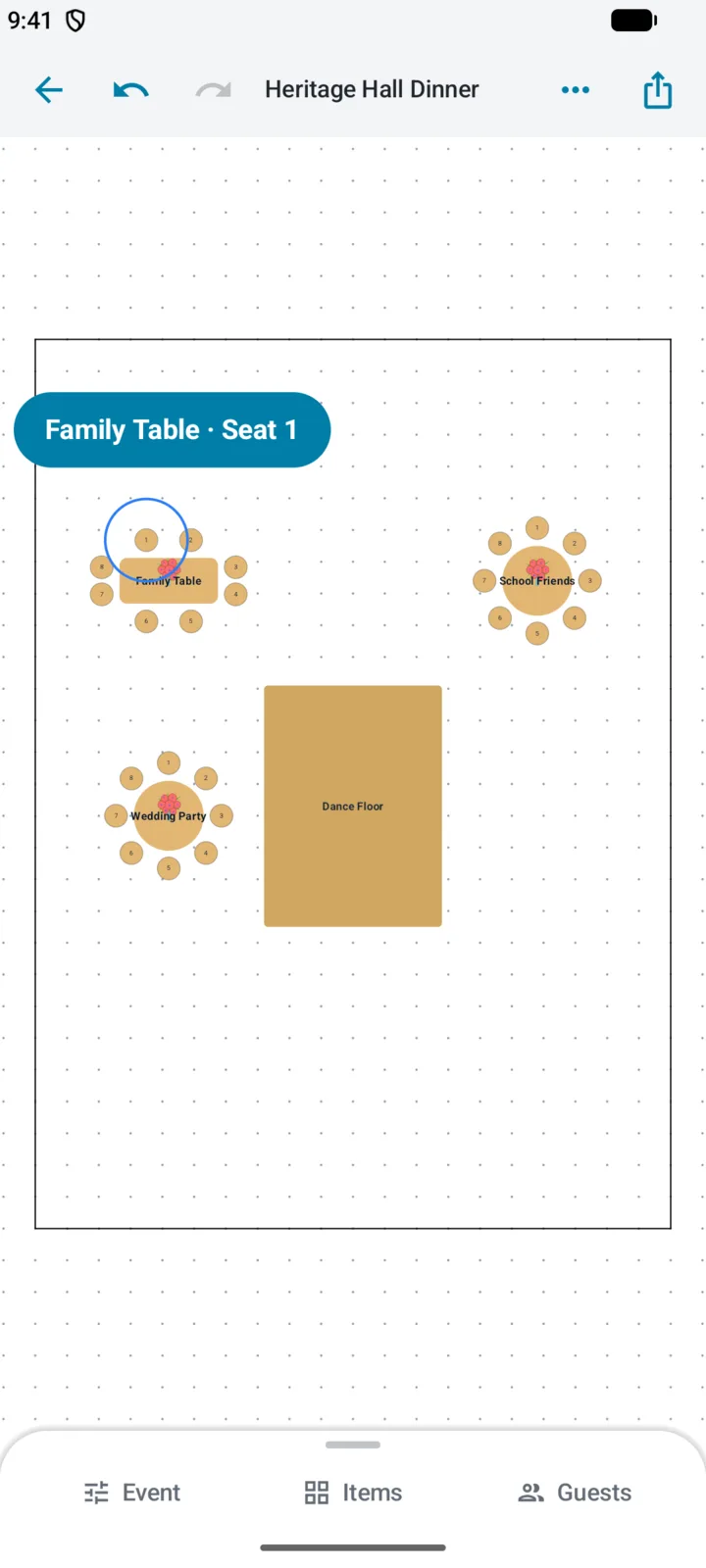
- Press and hold the guest’s row, then drag it onto the chair you want on the floor plan.
- Release when the chair is highlighted. If you drag a seated guest onto another occupied chair, the two guests swap seats.
Choose or clear a seat from the table
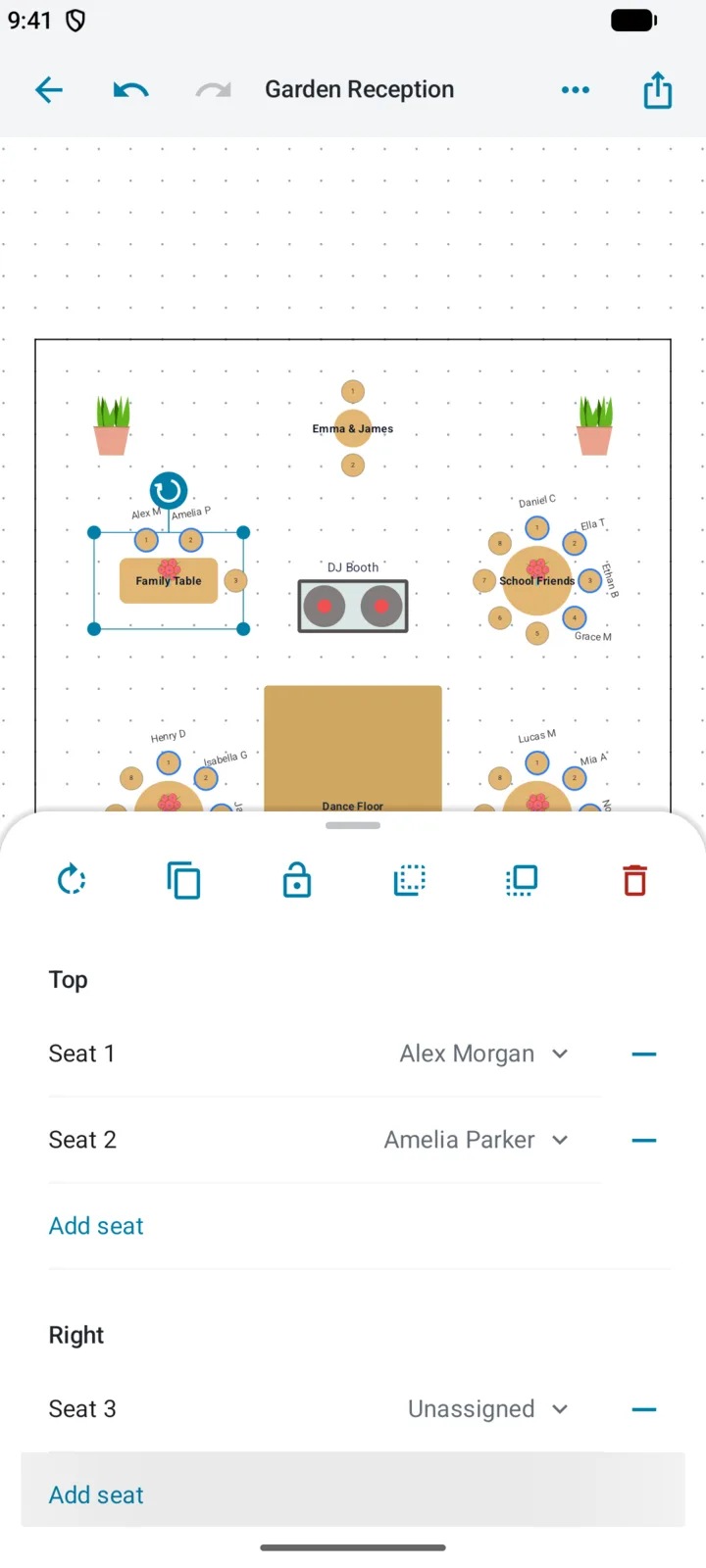
Tap the table, scroll to Seating, and tap the numbered seat. Choose a guest from the list, or choose Unassigned to clear the seat. If the table uses Fixed sides, look for numbered seats under the individual sides.
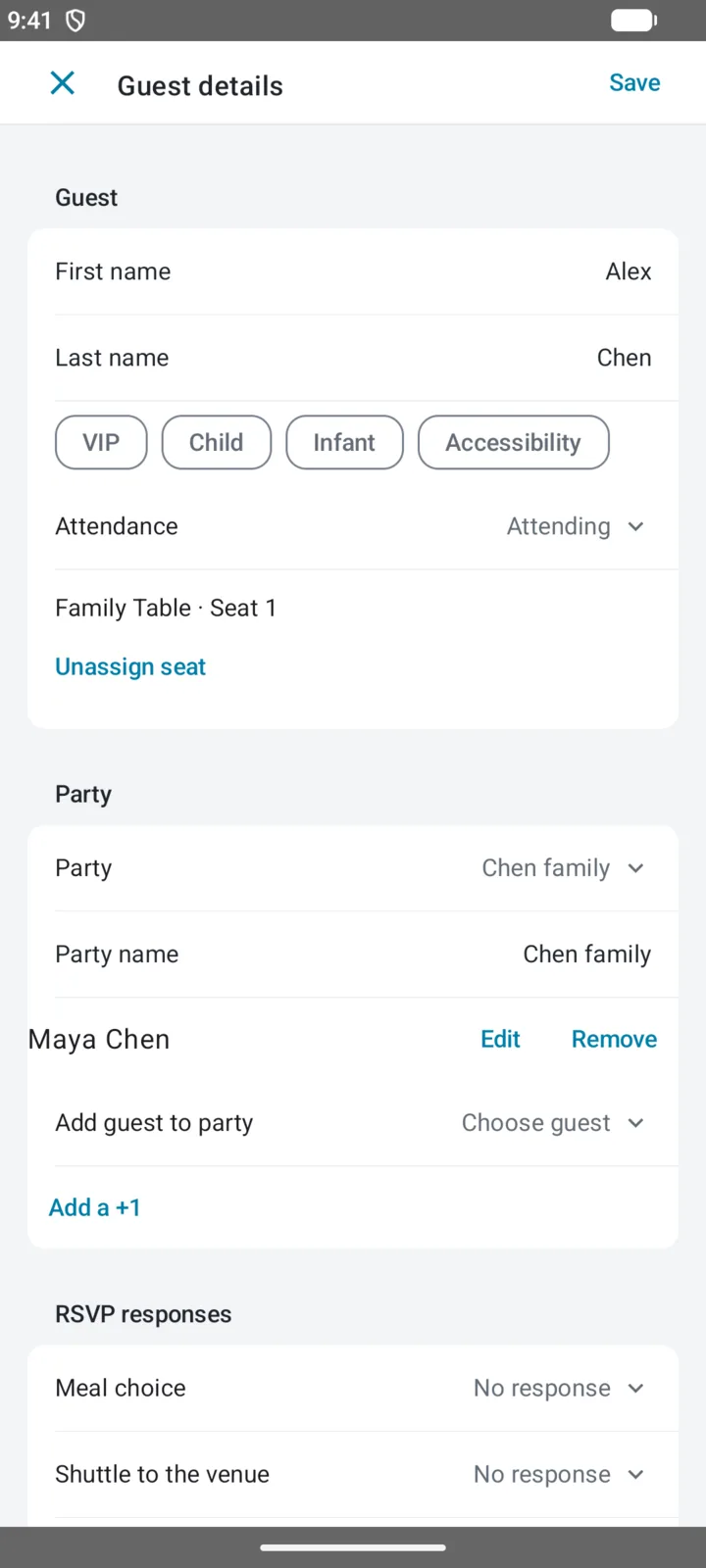
You can also open a seated guest’s details, tap Unassign seat, and tap Save.