How to move, resize, or rotate a floor item
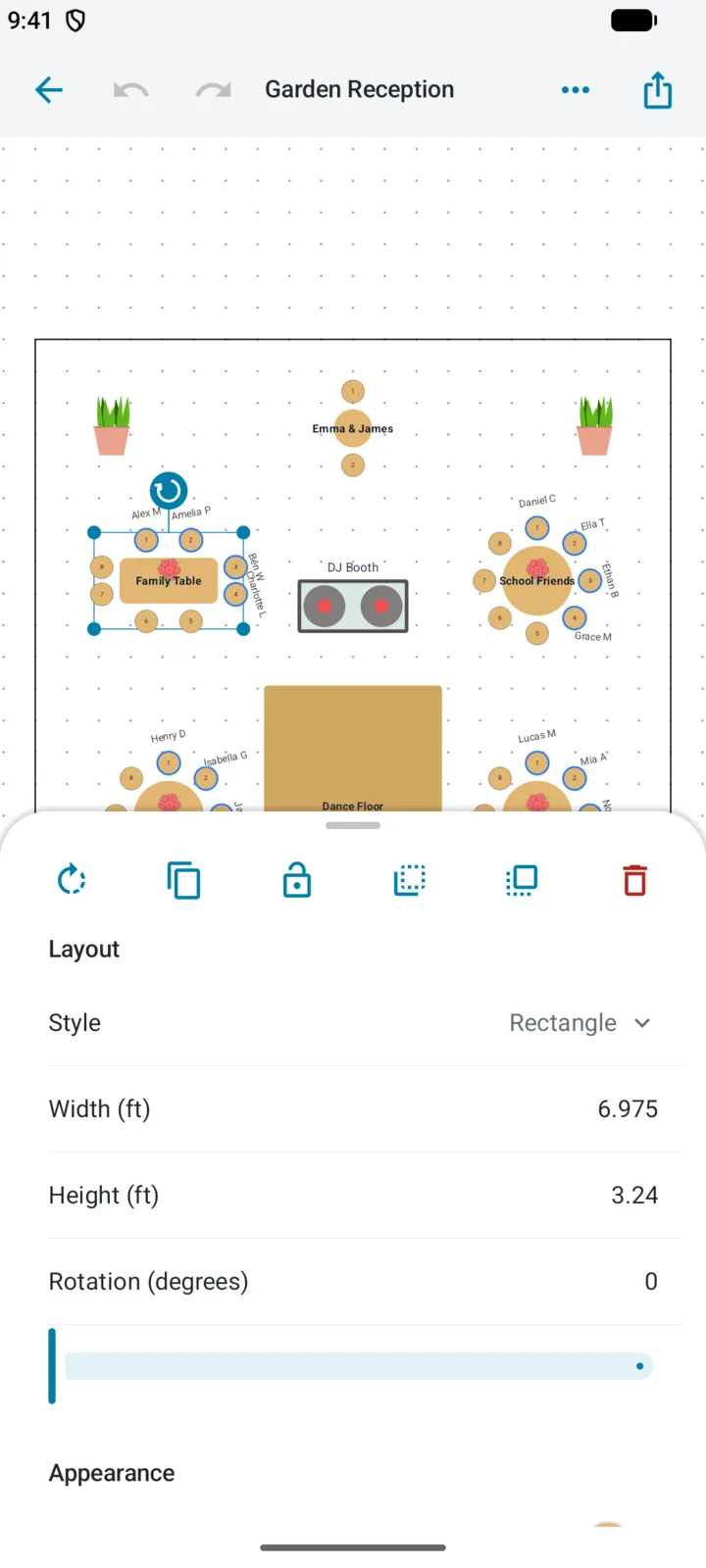
Use the handles on the floor plan
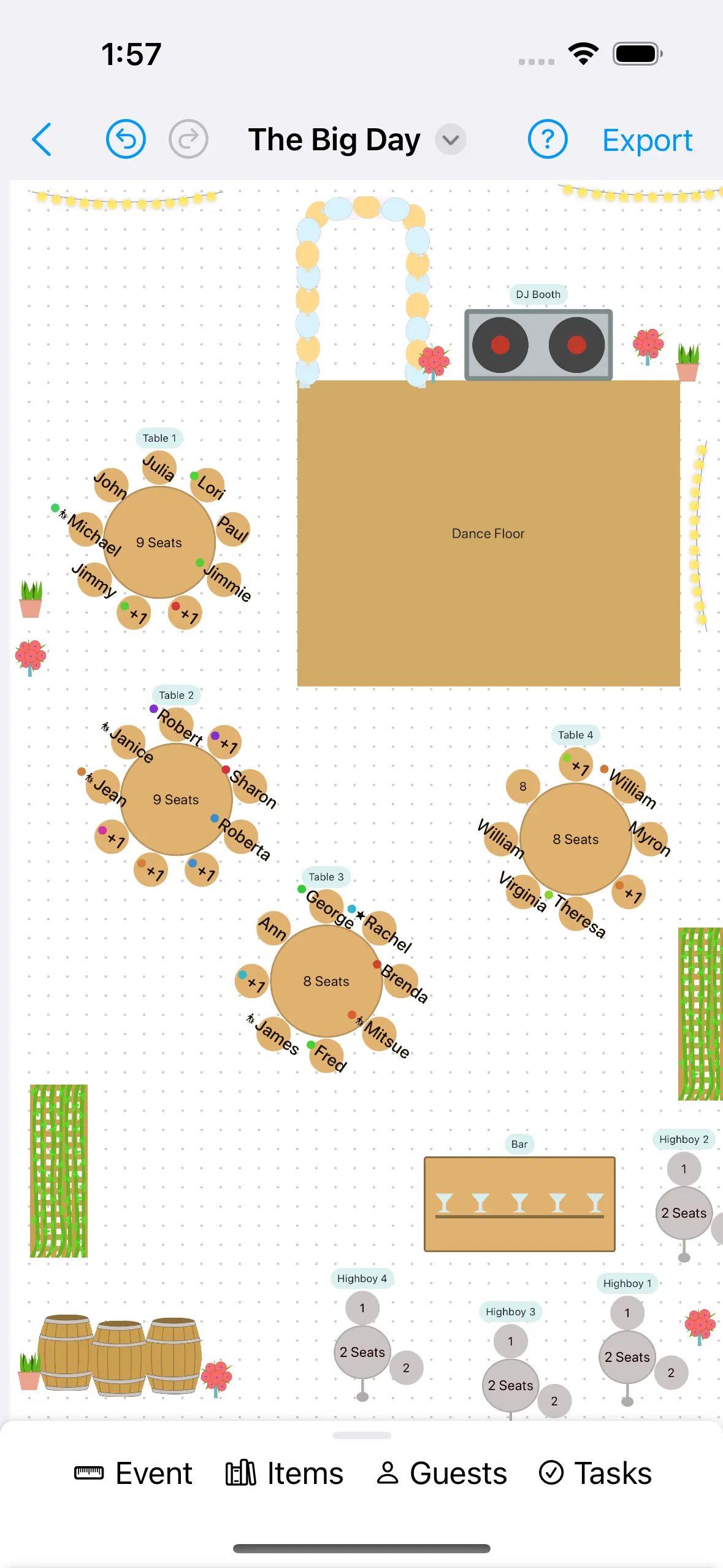
- Tap an item to select it.
- Drag the selected item to move it.
- Drag a blue resize handle to change the size, or drag the round rotation handle to turn the item.
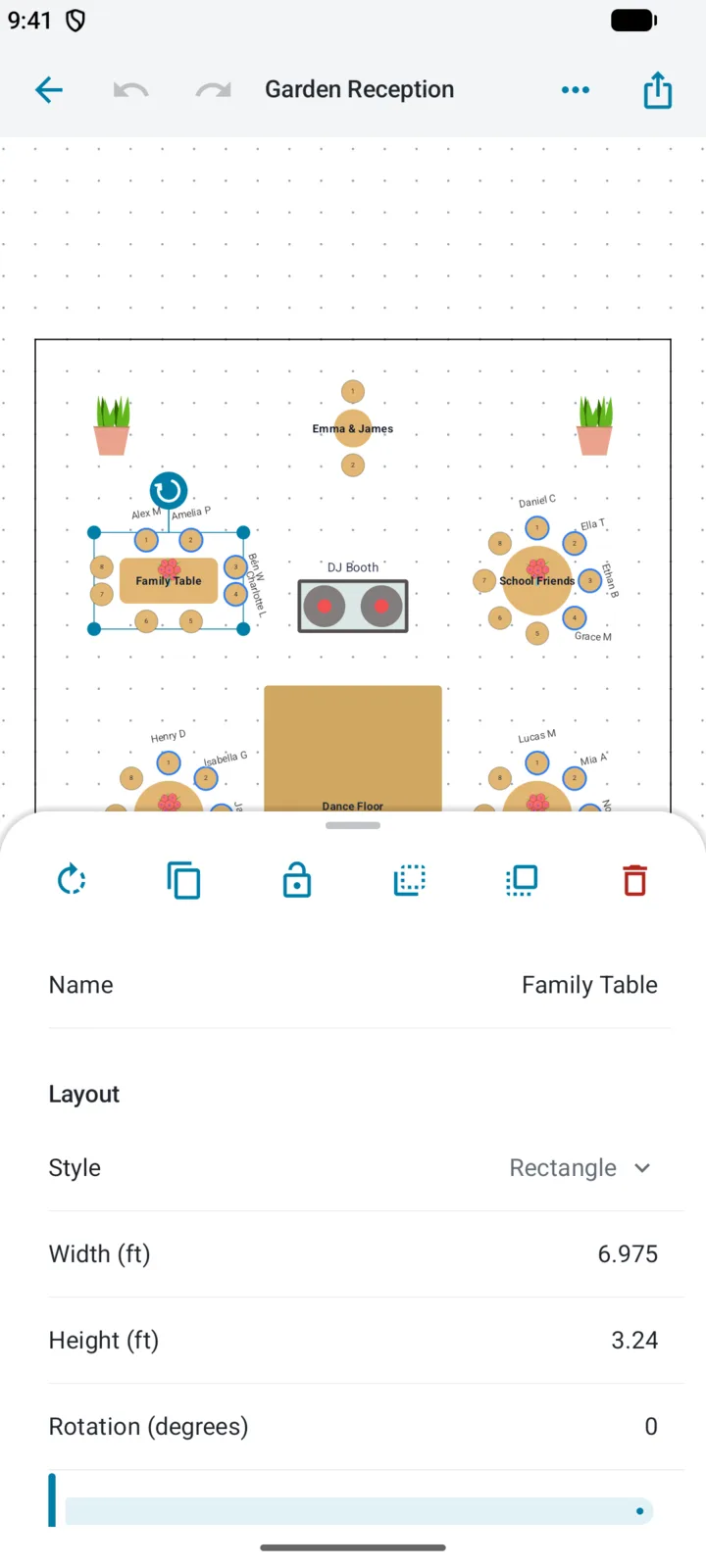
Enter a precise size or angle
With the item selected, scroll to Layout in the item panel. Enter a value in the available size fields or in Rotation (degrees). To turn the item 45 degrees at a time, tap the curved arrow at the top of the item panel.