How to publish an RSVP form and review replies
Publish and share the form
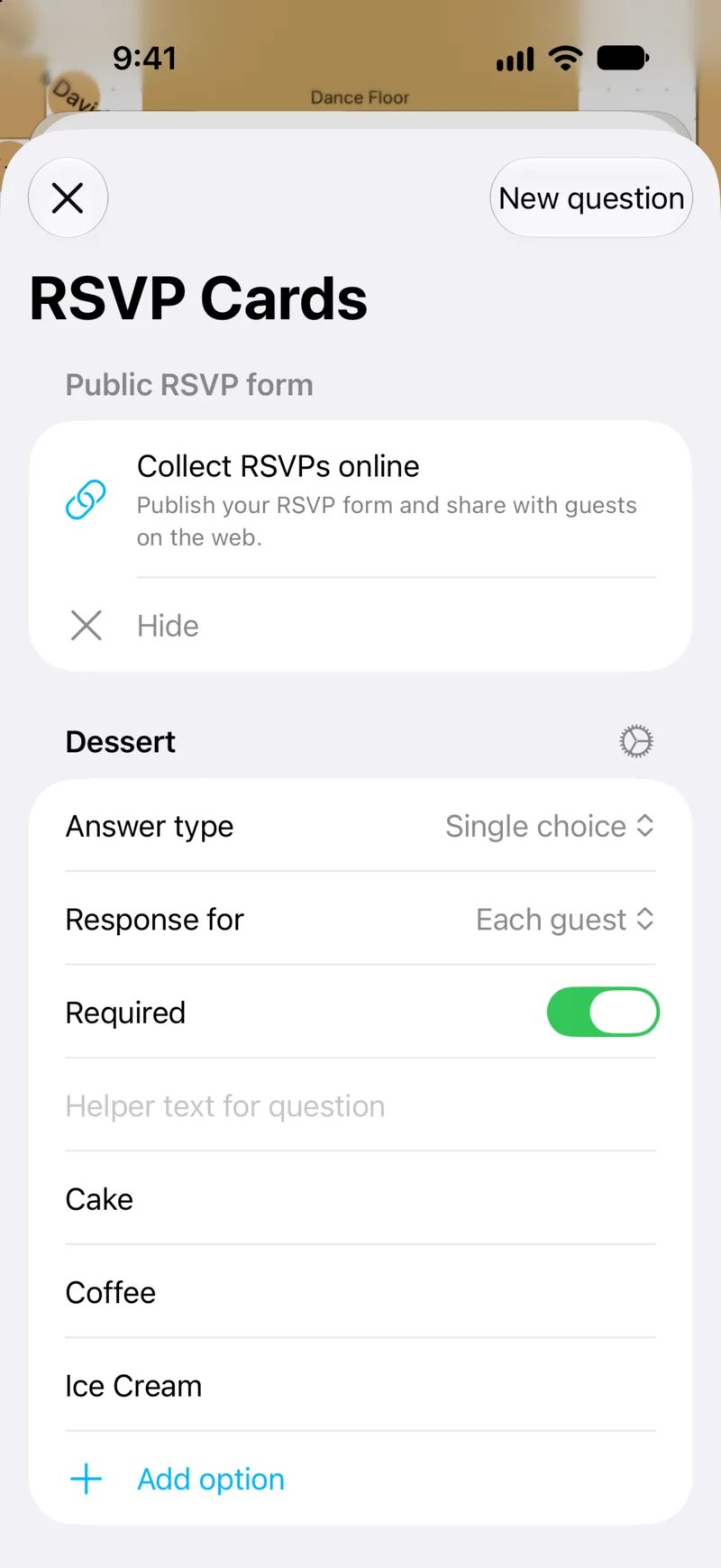
- Open your event and tap Event → RSVP cards & meals. Add or edit the questions you want guests to answer.
- Tap Collect RSVPs online. This opens the event in Seat Puzzle on the web. Sign in with the same Seat Puzzle account if prompted.
- Follow the web guide to preview, publish, and test your RSVP page.
- Share the public RSVP link with guests after testing it.
Check the replies in the app
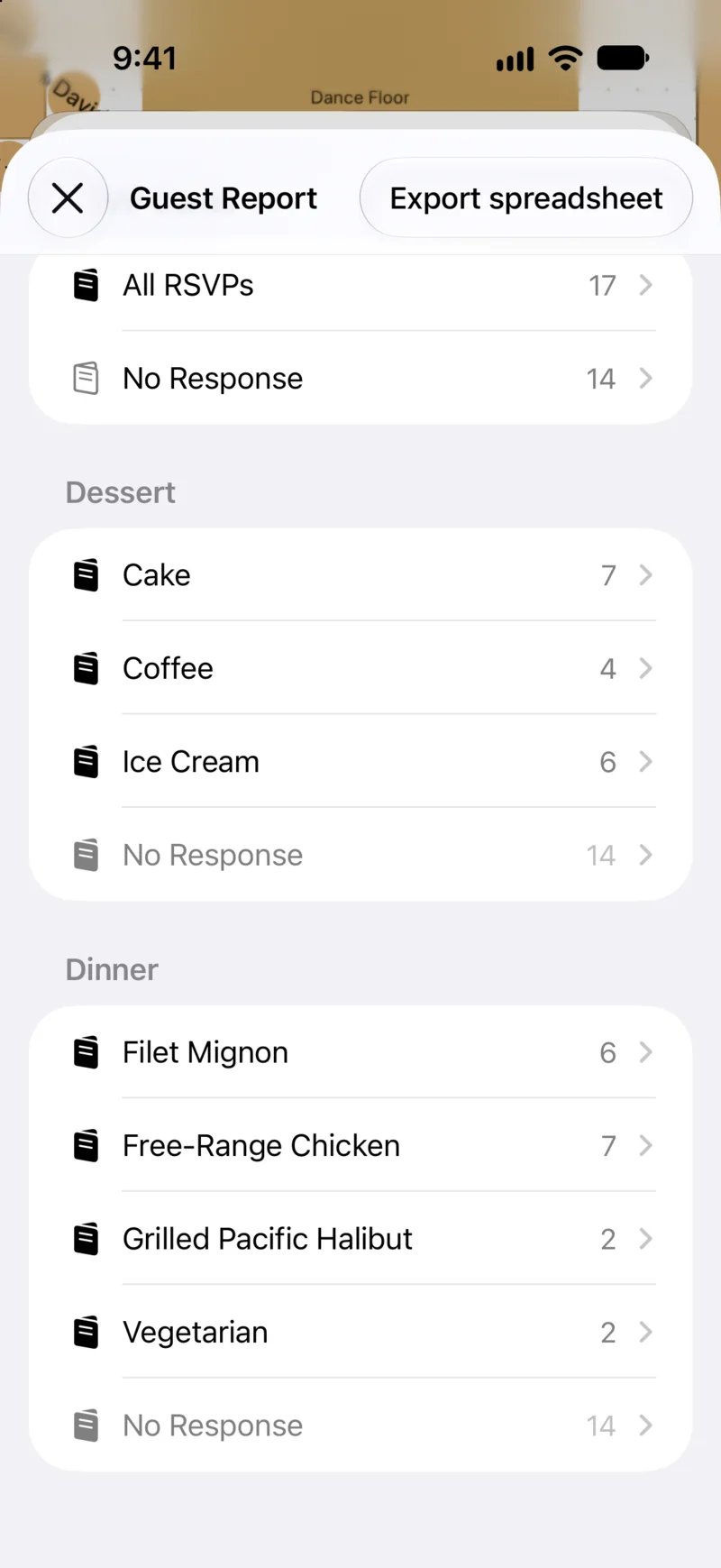
Open the floor plan’s More menu (•••) and tap Guest Report. Check Attendance for response counts, then scroll to your RSVP questions for the answer totals. Tap a report row to see the guests in that group.
To read one person’s answers, open their record in Guests and tap the responses card under RSVP Cards.