How to export a floor plan and seating list as a PDF
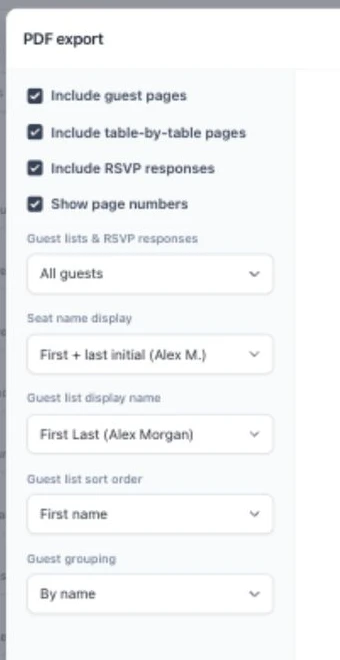
Open the event and select Export to open PDF export. On a narrow screen, find Export under More and open Customize for the PDF options.
Choose which pages to include. Include guest pages adds guest lists, Include table-by-table pages adds individual tables and their seating, and Include RSVP responses adds answers. Use Show page numbers to number the packet.
Pick All guests or Attending or needs info only under Guest lists & RSVP responses. Adjust name format, sort order, and grouping for the people who will use the printout.
Select Download. Open the PDF from your browser downloads to print or share it.