How to fill, adjust, and review seats by table
Fill or rearrange a table
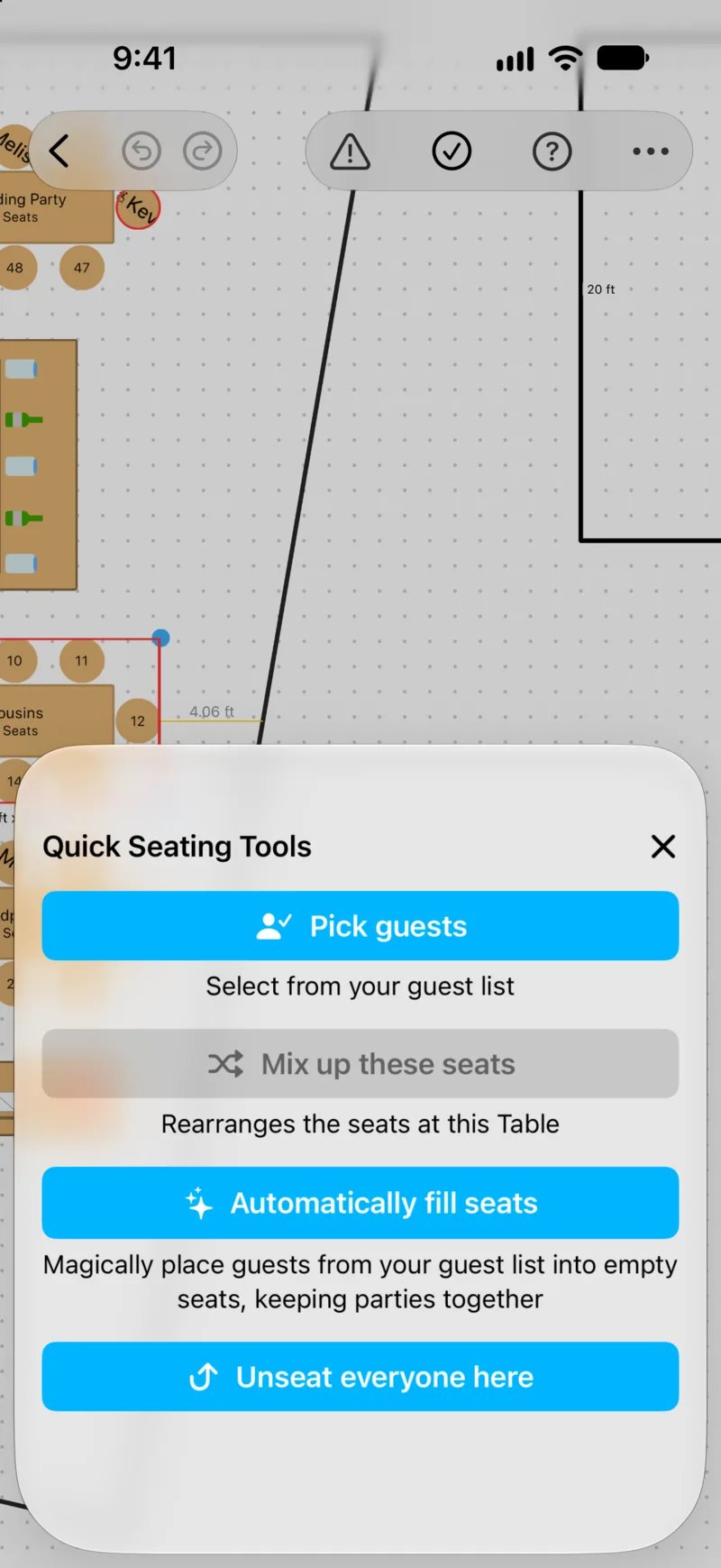
Tap the table on the floor plan, scroll to Seats, and tap Quick actions.
- Pick guests opens the guest picker so you can choose who to seat.
- Automatically fill seats assigns unseated guests to the empty seats. Seat Puzzle uses parties and seating preferences when choosing guests.
- Mix up these seats rearranges the guests already seated at that table.
- Unseat everyone here clears the table’s assignments and keeps those guests in your guest list.
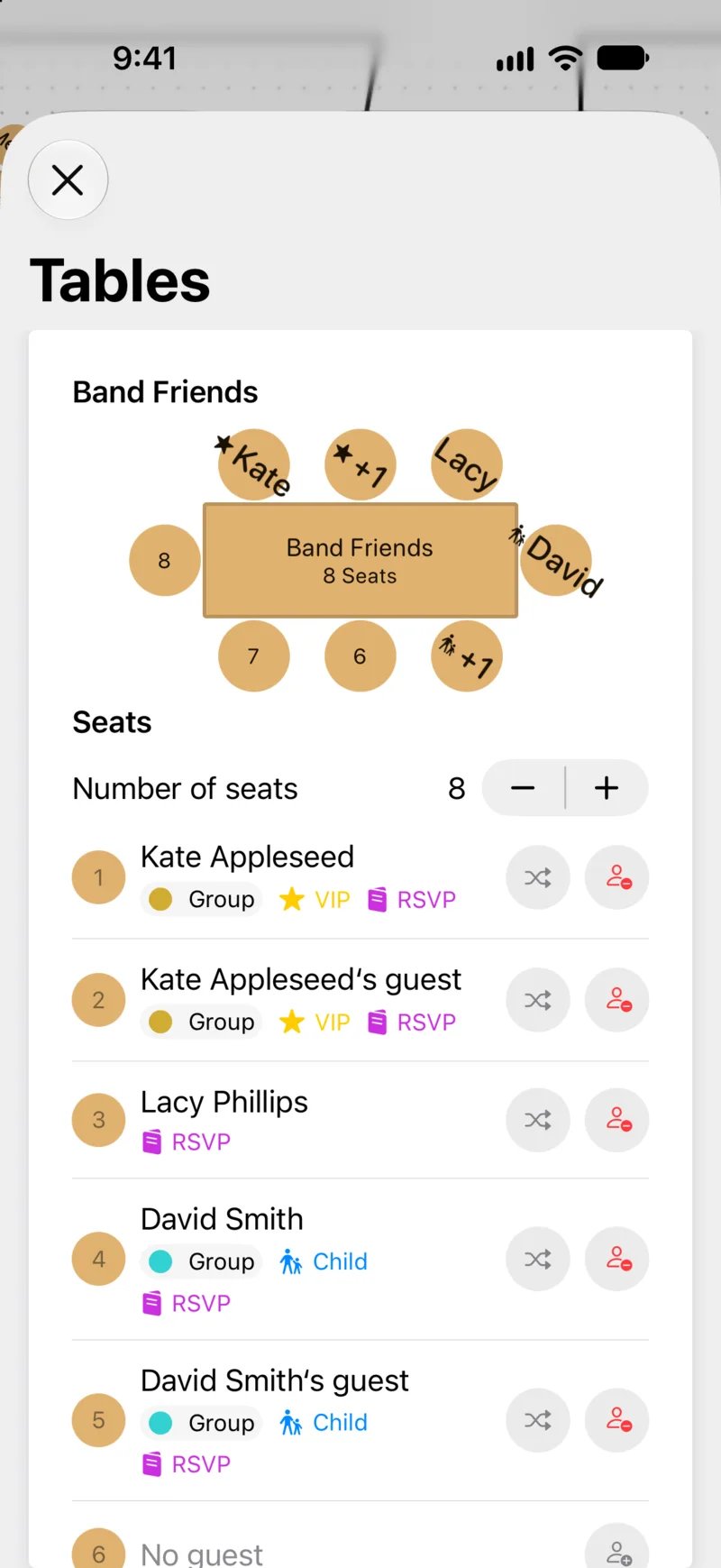
Review all tables
Open the floor plan’s More menu (•••) and tap Table Quick Look. Scroll through the tables to see their layouts, seat counts, and assigned guests. Use the controls by a seat to change or remove its assignment.