How to customize your RSVP guest page
Open RSVP → Guest page.
- Select Choose banner photo to add a photo from your device.
- Write a Welcome message for the lookup screen and a Guest message for after guests find their RSVP.
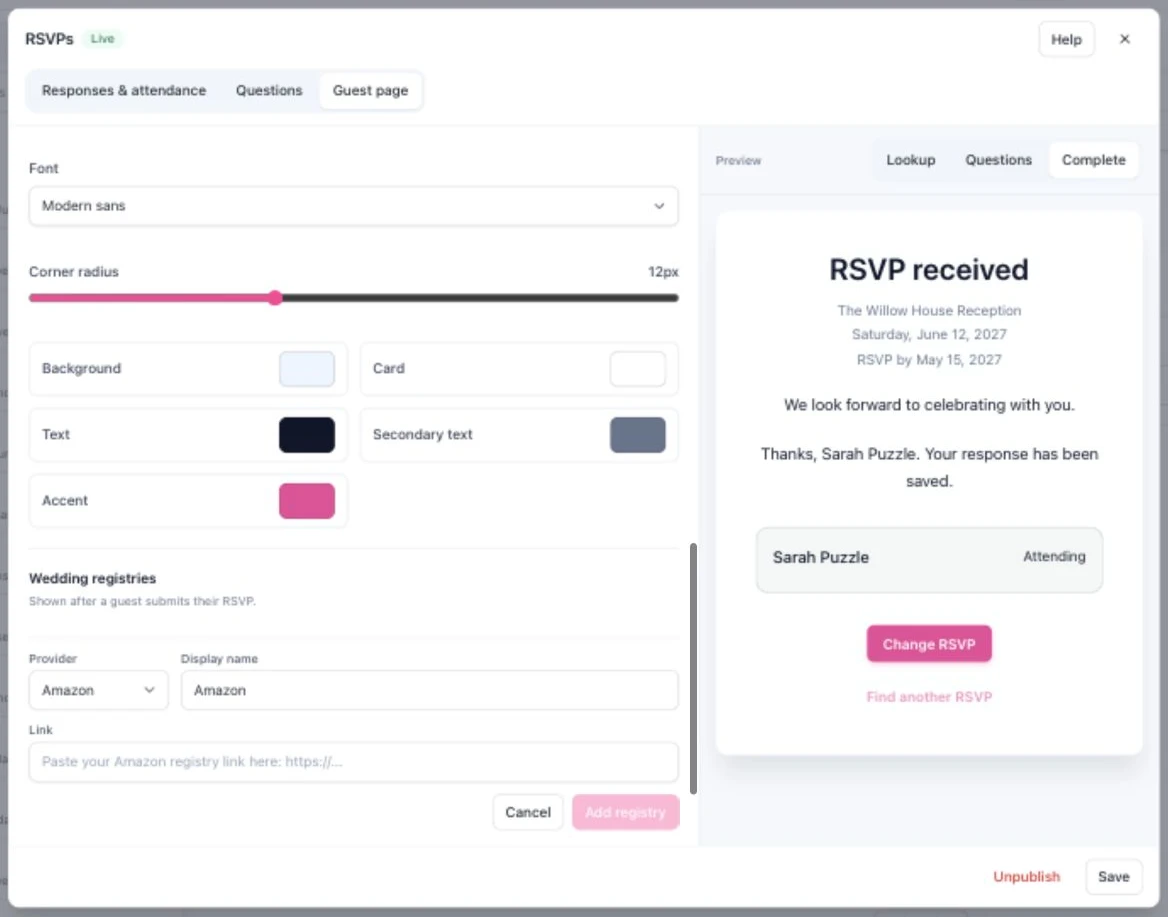
- Under Appearance, choose a font, corner radius, and colors for the background, card, text, and accent.
- Under Wedding registries, select Add registry and enter a name and link. The links and Registry message appear after guests submit their RSVP.
- Use Lookup, Questions, and Complete in Preview to check each screen, then select Save.