How to set table shape, size, and seat count
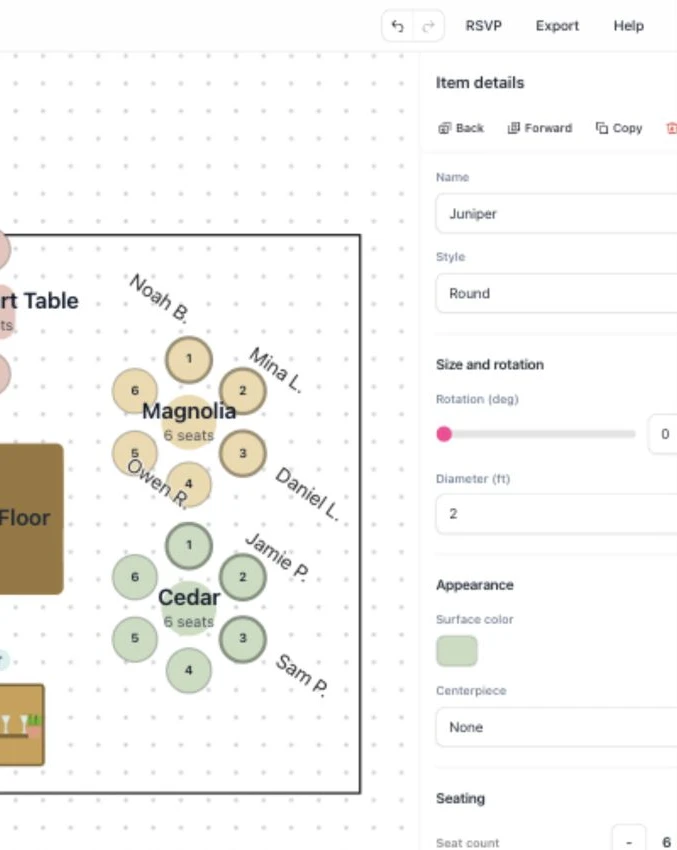
- Select a table on the floor plan.
- In Item details, use Style to choose a shape, such as Round, Rectangle, U-Shaped, or Serpentine.
- Use Size and rotation to set the table dimensions.
- Under Seating, use − or + by Seat count to adjust capacity. If the shape offers a seating layout, choose how the chairs should sit around the table.
- Use Assign next to an empty seat or Unseat next to an assigned guest. Check your seat assignments after changing a table’s shape or capacity.
Back to all topics